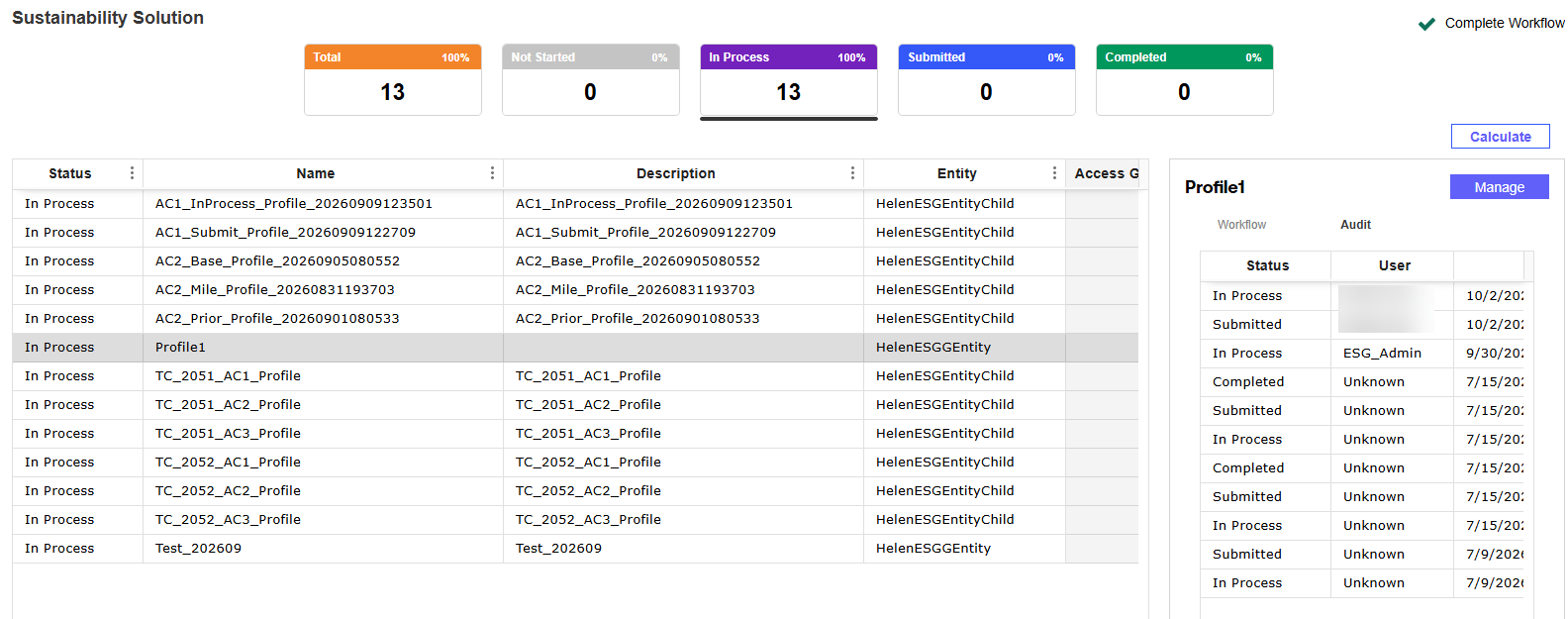
The Home page displays tiles for each Profile status, including a tile with the total number of Profiles. Each tile shows the corresponding Profile count. You can use the tiles to filter the Profile grid by status. When you select a status tile, all Profiles with that status display in the grid. To clear the filter, select the same tile again. The Profile statuses are: Not Started, In Process, Submitted, and Completed.

When you select a Profile from the grid, the pane displays the status progression of that profile in the Workflow tab.
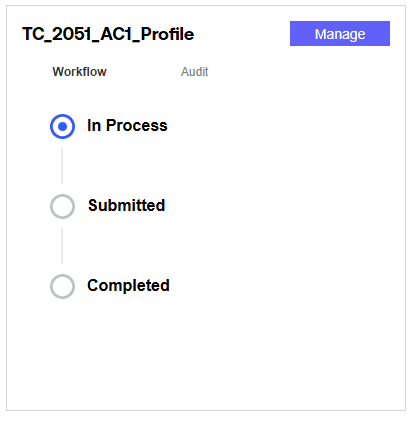
The Access Group a user is assigned to determines their view and usage of the Home page. See Access. Approvers, Preparers, and Viewers each have a different view of the details pane and have access to different options depending on the Profile status.
NOTE: The View button displays in all Profile statuses for the View Access Group.
| Task | Role | Status | Details Pane View |
| Create Profile | Administrator | Not Started |
Approver: The View button displays Preparer: The Manage button displays NOTE: You cannot submit a Profile with a Not Started status. |
| Data entered and saved | Preparer | In Process |
Approver: The View button displays Preparer: The Manage button displays |
| All data entered and submitted |
Preparer |
Submitted |
Approver: The Manage button displays Preparer: The View button displays |
| Profile Approval Process | |||
| Profile is approved | Approver | Completed | The View and Manage buttons do not display for all users. |
| Profile is rejected | Approver | In Process | Approver: The View button displays Preparer: The Manage button displays |
| A Completed Profile is reverted | Approver | In Process |
Approver: The View button displays Preparer: The Manage button displays |
NOTE: The Revert button does not display for Completed Profiles if the workflow is complete.
Data cannot be added or edited if the Profile is in the Submitted or Completed status. When the Profile has these statuses, the New and Edit icons do not display in the data entry tabs.
Profile Audit
The Audit page provides details on all Profile status updates. Select a Profile from the grid and select the Audit tab to display audit details for that profile. The grid displays the status, the user who updated that status, and the timestamp for the update. The grid lists entries from oldest to newest. To display entries from newest to oldest, select the Date Time column header.